
Why NitTray?
Apple Studio Display and Pro Display XDR do not include physical brightness controls. On macOS, brightness can be adjusted through System Settings, but Windows does not provide built-in controls for these displays.
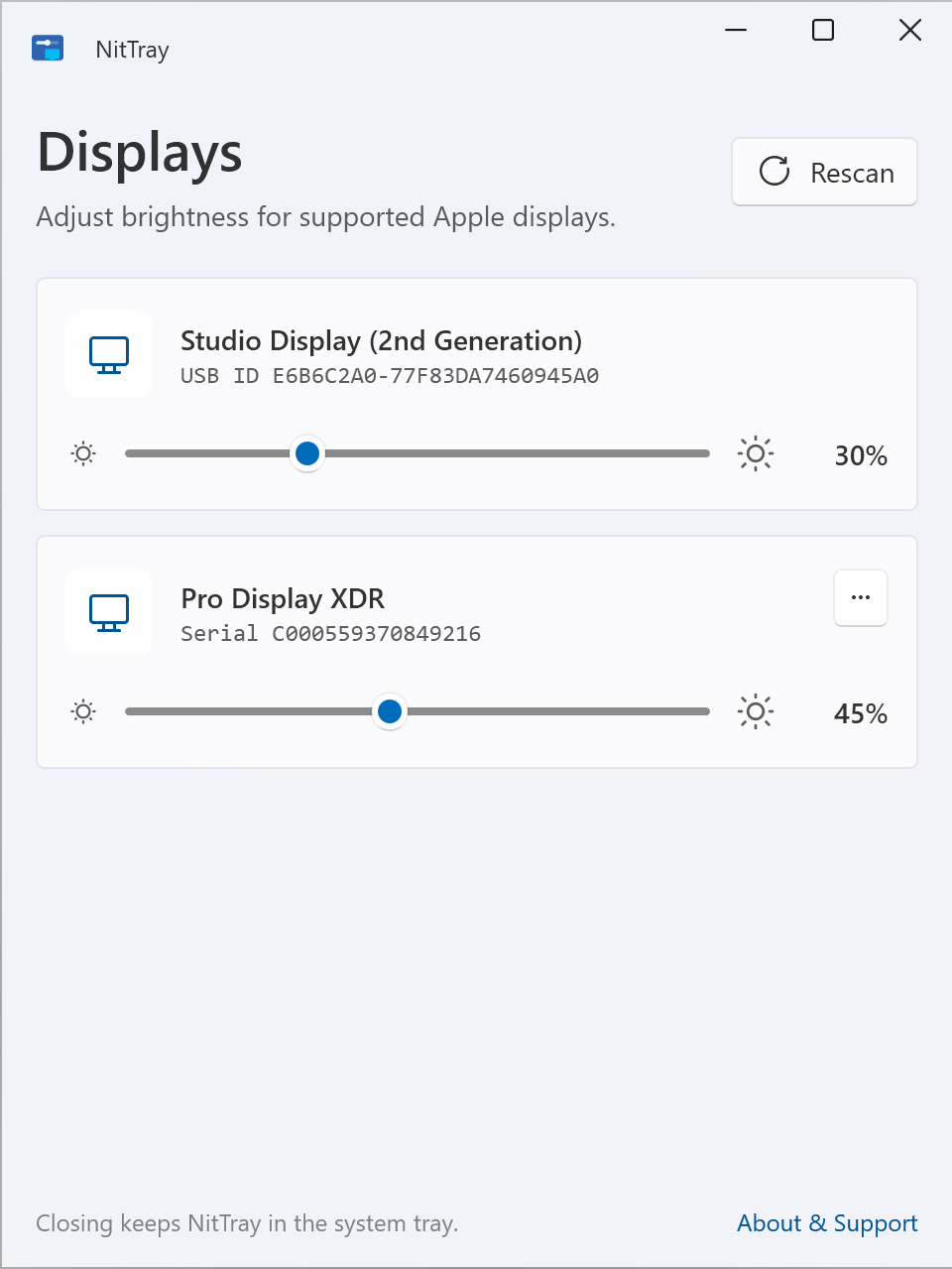
NitTray adds a simple system-tray slider that communicates directly with the display over USB, allowing you to adjust brightness on Windows 10 and Windows 11.
Features
🔆 Quick Access
Launch a compact window from the system tray, or change brightness from any app with a keyboard shortcut.🖥️ Multiple Display Support
Automatically detects Apple displays and controls each independently.🪶 Lightweight
Runs quietly in the system tray with minimal resource usage.🔓 Free and Open Source
Licensed under the GNU General Public License v3.0.Supported Displays
- Apple Studio Display
- Apple Studio Display XDR
- Apple Pro Display XDR
Connect your display directly to your PC using a USB-C or Thunderbolt cable that supports data transfer.
Frequently Asked Questions
Why does Windows show a “Windows protected your PC” message?
NitTray is code-signed, but because it is a new application, Microsoft Defender SmartScreen may display this message the first time you launch it. Select More info, then Run anyway.Does NitTray support the Pro Display XDR?
Yes. During initial setup, NitTray installs a lightweight WinUSB helper that enables brightness control for the Pro Display XDR.What type of USB cable do I need?
Connect your display directly to your PC using a data-capable USB-C or Thunderbolt cable that supports USB 3.1 Gen 2 / 10 Gbps or higher. Power-only cables, or cables without the required data support, may prevent NitTray from detecting the display.Is NitTray free?
Yes. NitTray is free and open-source software licensed under the GNU General Public License v3.0.Support
NitTray is free and developed in my spare time. If it has been helpful to you, any support is greatly appreciated and helps me continue improving the app.